
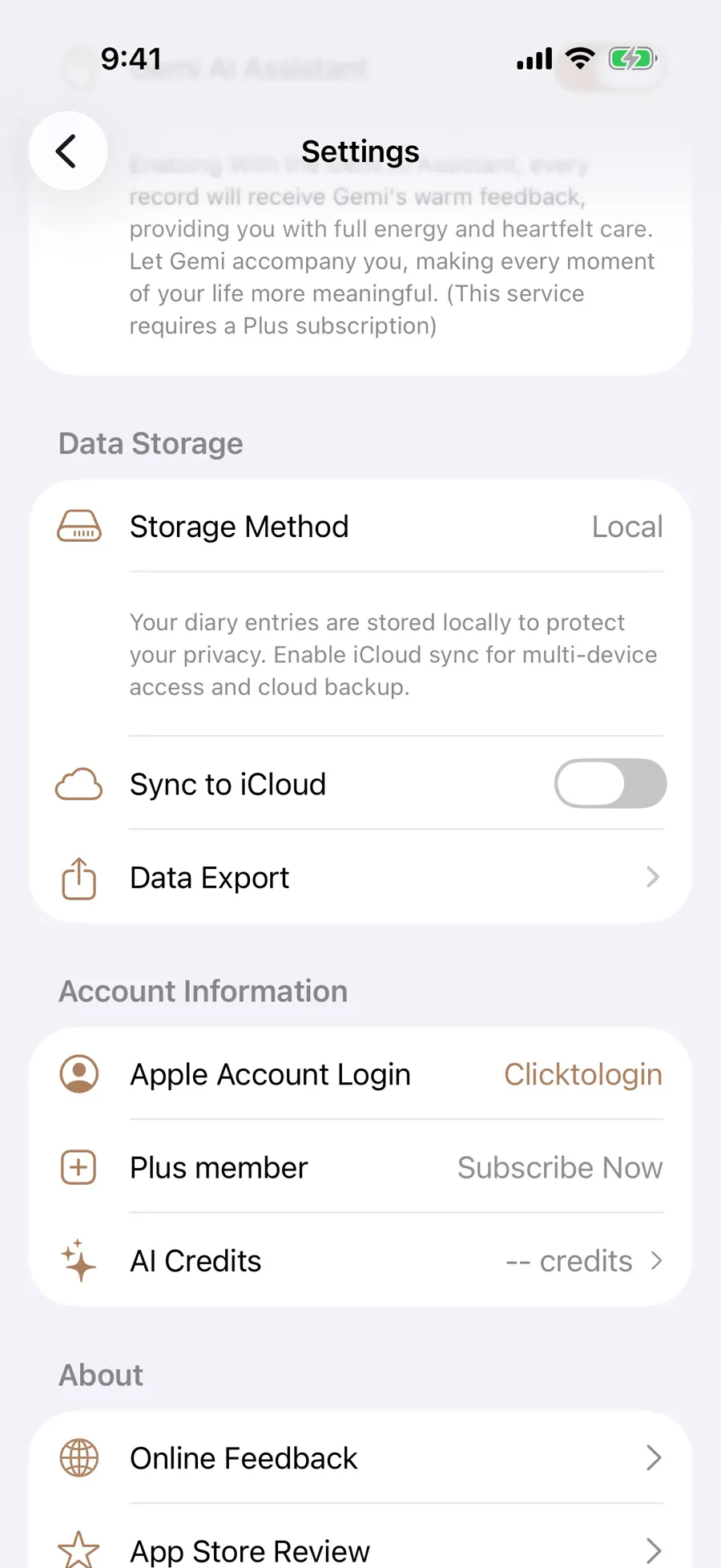
Before changing phones, you may want to open an old entry in a file of your own. In Gemi, choose the days under Data Export in Settings and save them as Markdown; switch on images if the photographs matter too. Once saved, open the copy and make sure the first and last entries are there.
Circle the days
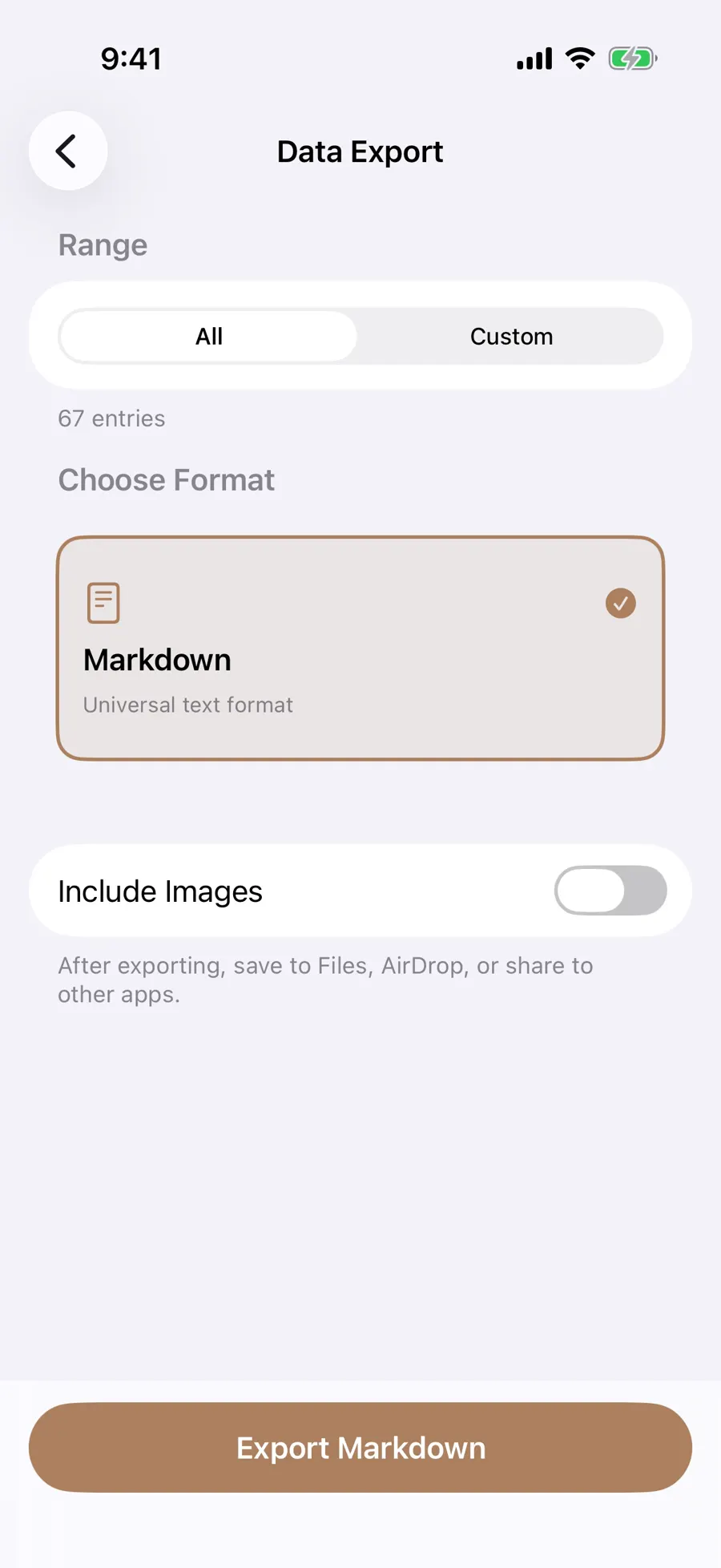
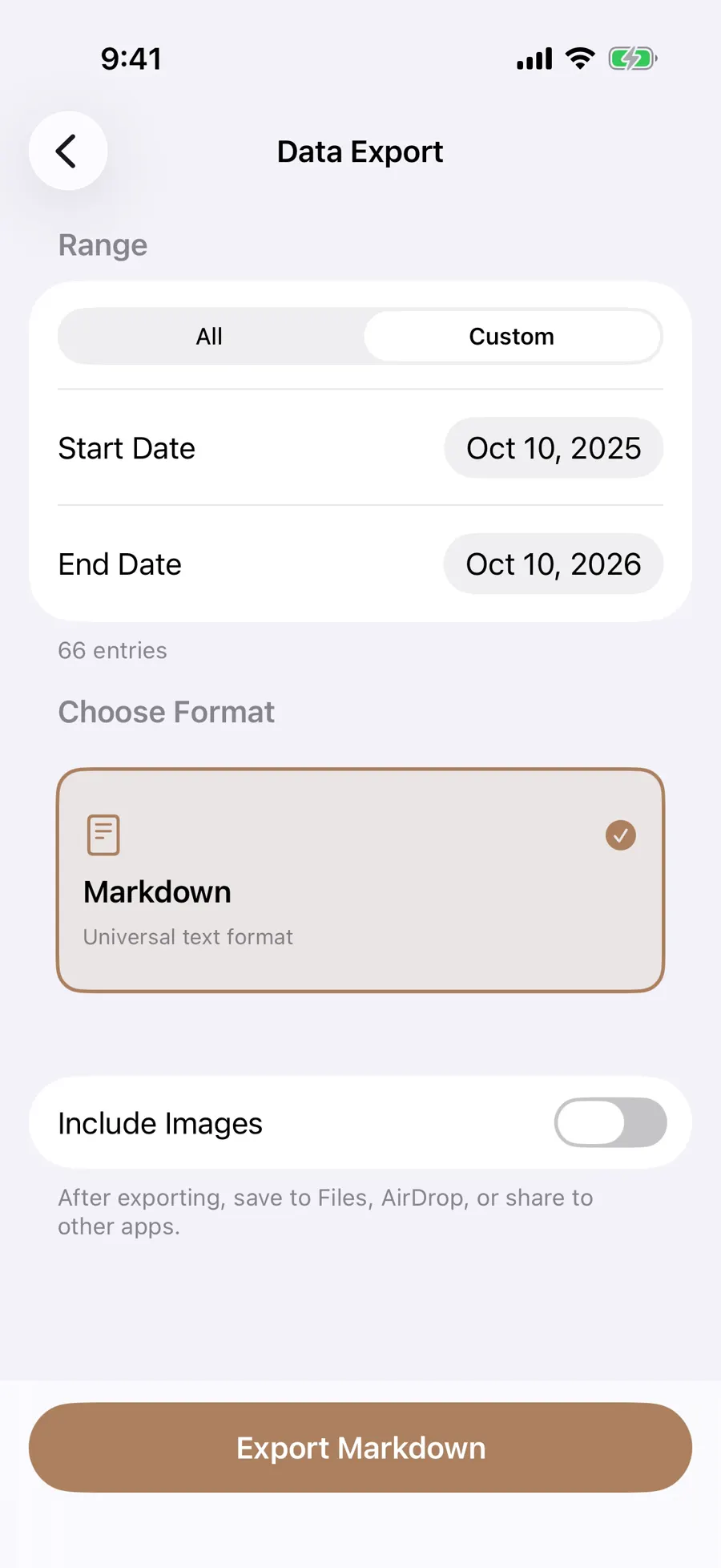
Saving one trip? Check its first and last days in the calendar, then open Data Export under Settings and Data Storage. The range starts at All; choose Custom to set both dates. The end date includes that whole day, so a Friday-to-Sunday trip needs Sunday as its end, even if you wrote at night. Check the entry count before exporting to catch a missing day.
- 1
- 2
- 3
You can watch progress or cancel. If the range or picture choice was wrong, change it and export again.
The file you will actually open
Leave Include Images off, its default, for a plain .md file. Turn it on for a .zip with the Markdown and an images/ folder. Extract the archive and keep that folder beside the text: its picture links use relative images/... paths. The file name begins with the app’s “Gemi export” label and ends in a yyyy-MM-dd date; give multiple copies from the same day different names where you save them.
The Markdown opens with a title, export time and entry count. Each entry has a full date and time heading and a divider before the next, which keeps several entries from one day distinct. A saved place, weather, mood, # tags, @ people and your writing follow. Pictures you chose are linked below their entry, and additional responses you wrote appear as quoted blocks. Entry dates follow the language in the app; the export time at the top uses numbers.
Read the copy before you rely on it
After the system share sheet opens, save the file to Files, AirDrop or a compatible app. Open it and compare the count at the top with the export screen, then read an entry near each end of your range. If you included pictures, extract the zip and open a few image links; the files may be PNG or JPEG. Seeing a zip alone does not tell you whether its links will work.
Plain Markdown can be read and searched in a text editor. To see the pictures, the reader needs to find them in the accompanying folder.
What stayed in the app
The book, film and song cards, flights, trains, audio, video and AI-generated responses beside an entry do not come across in this export, nor do their full links to the entry. A book title or flight number you wrote yourself remains as text. Include Images applies to journal pictures, not every attachment. The Markdown or zip cannot restore the complete journal with those connections; check anything else you need in the original entries.
If you are changing devices, iCloud sync settings explain how to check sync status. See Privacy for how stored data is treated.
If you need a PDF
The export screen currently offers Markdown, not PDF or JSON. Convert the Markdown afterward if you need a PDF. You must be signed in to export; the button is unavailable with no entries, while the count loads, or during an export.
Updated 2026-10-11 · Screenshots use demo data