
You are walking home through the Mission with your hands full, and the sentence you want to keep arrives before you can type it. In Gemi, speak into a new entry for editable writing, or keep a recording with it. Decide whether you want to reread the words later, hear your voice again, or keep both.
Say the rough version first
The value of speaking is sometimes simply that it gets the moment down before it disappears. The recording can include hesitations, while the text is easier to skim a year later. If a phrase sounds wrong after tidying, keep the wording you meant; there is no requirement to accept a polished version.
When a new entry is empty, tap “Or just say it” in the text area. Speak naturally, then use “Tidy up” to arrange the result as text you can edit. In the English demonstration, a loose account of buying flowers becomes a readable entry, with the original and tidied versions available to compare.
- 1

- 2


If you have already begun typing, you can keep writing or use voice from the expanded editor. The tidied text is useful for reading, but it cannot preserve a laugh or the sound of rain in the background.
Keep the voice itself
The recording sheet lets you listen before keeping a clip. You can still write a sentence alongside it so a future version of you knows why the clip mattered.
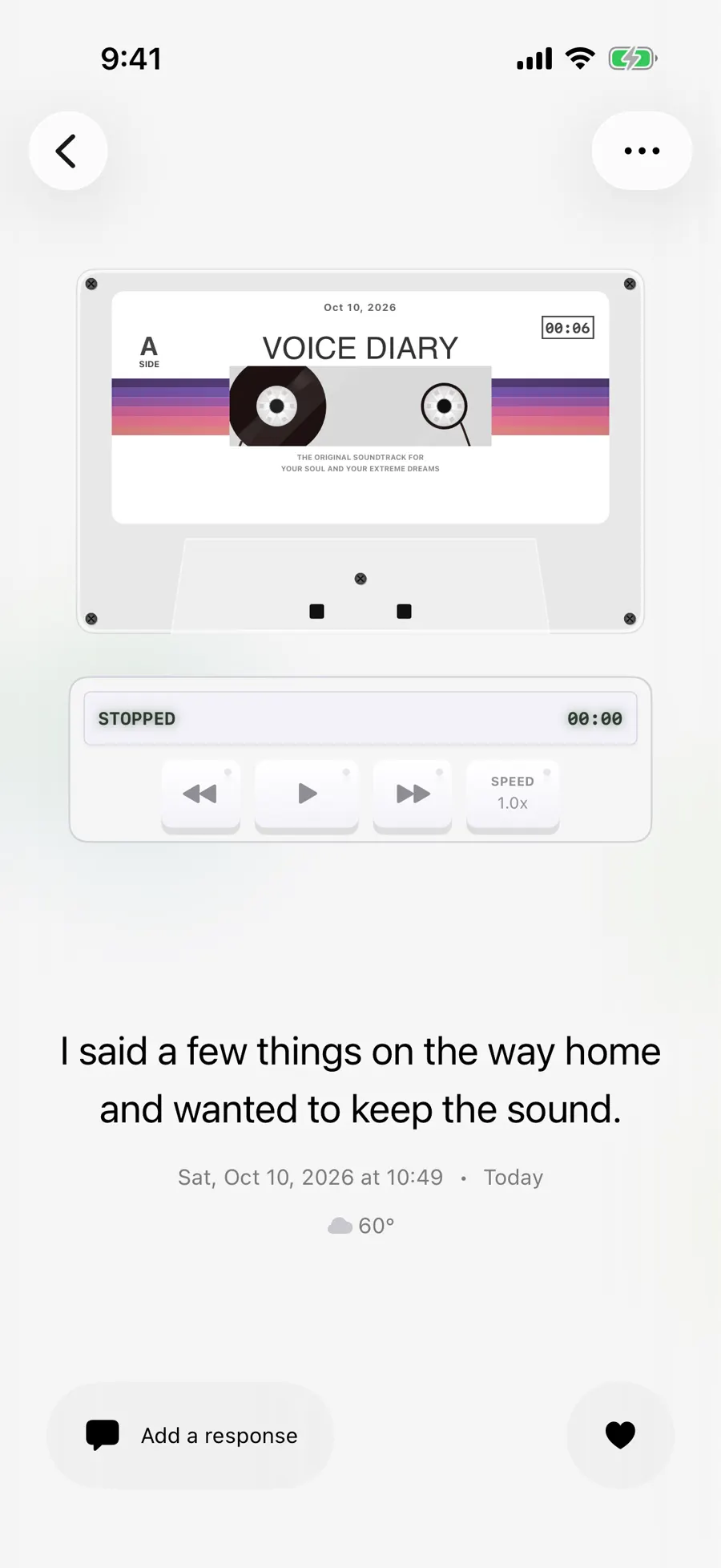
Tap the waveform in the writing bar to record. Choose to use the clip; it stays with the entry once you save. In the demo, a short audio player is visible above the words “I said a few things on the way home and wanted to keep the sound.” Open that entry later and play it there. You may also choose to turn a recording into text as a separate step.
- 1

- 2
Use a transcript for a passage you want to scan quickly; use the audio when tone and pauses matter. The voice journal guide has ways to begin with one thought. A document you already have belongs under attachments.
Before you record or transcribe
If you do not want to use transcription immediately, the audio can still serve as the memory. Keep a brief written label such as “walk home after dinner” so you know what to play later. A transcript makes an entry easier to read, but a pause, emphasis, or background sound may be the very part you wanted to preserve.
The spoken route has a useful fork. “Tidy up” is for reading your account as prose; “use and transcribe” is available for a recorded clip when you also want text. The app shows original and tidied text in the demo, giving you a chance to compare them.
Recording needs microphone permission. Tidying and transcription need a connection; transcribing a recording also requires sign-in and uses credits based on its length. Before saving, listen to the clip and review names, places, and any quoted words in the text. If you are deciding whether to send spoken content for outside processing, read the privacy page first.
Updated 2026-10-11 · Screenshots use demo data