
Maya sent a page about Ocean Beach just as you were planning the next walk. You could leave it buried in a message thread, or put it beside the plan you wrote that day. In Gemi, save links in journal entries with your own words. The page becomes a preview card, and the reason you kept it stays in the entry.
Keep the reason with the link
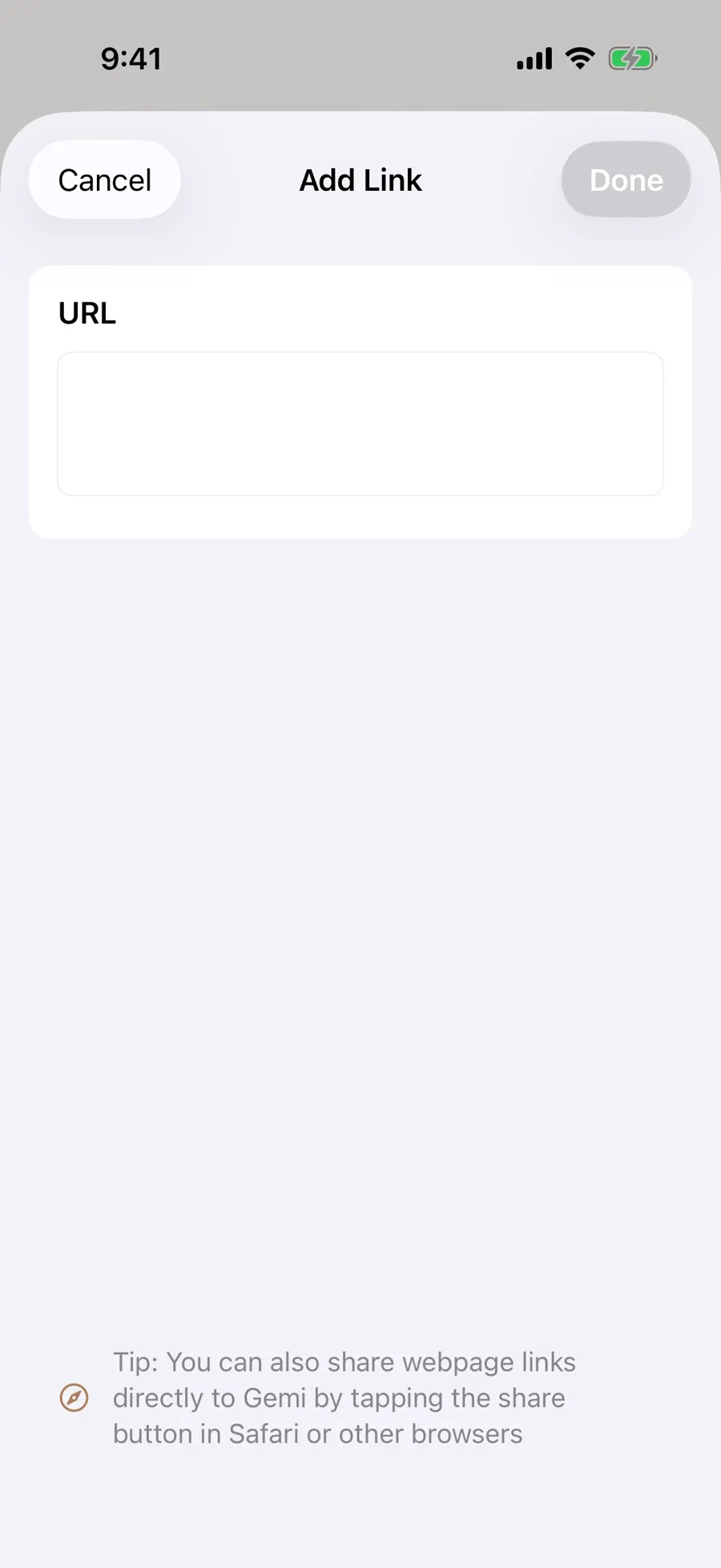
Tap the link icon in the writing bar, paste the address, and check the preview. In the English demo, a page about Ocean Beach has a title and image above a short note about returning for another walk. Open the saved entry to see the card; if the entry has photographs too, swipe through them to reach it. Tap the card when you want the original page.
- 1
- 2
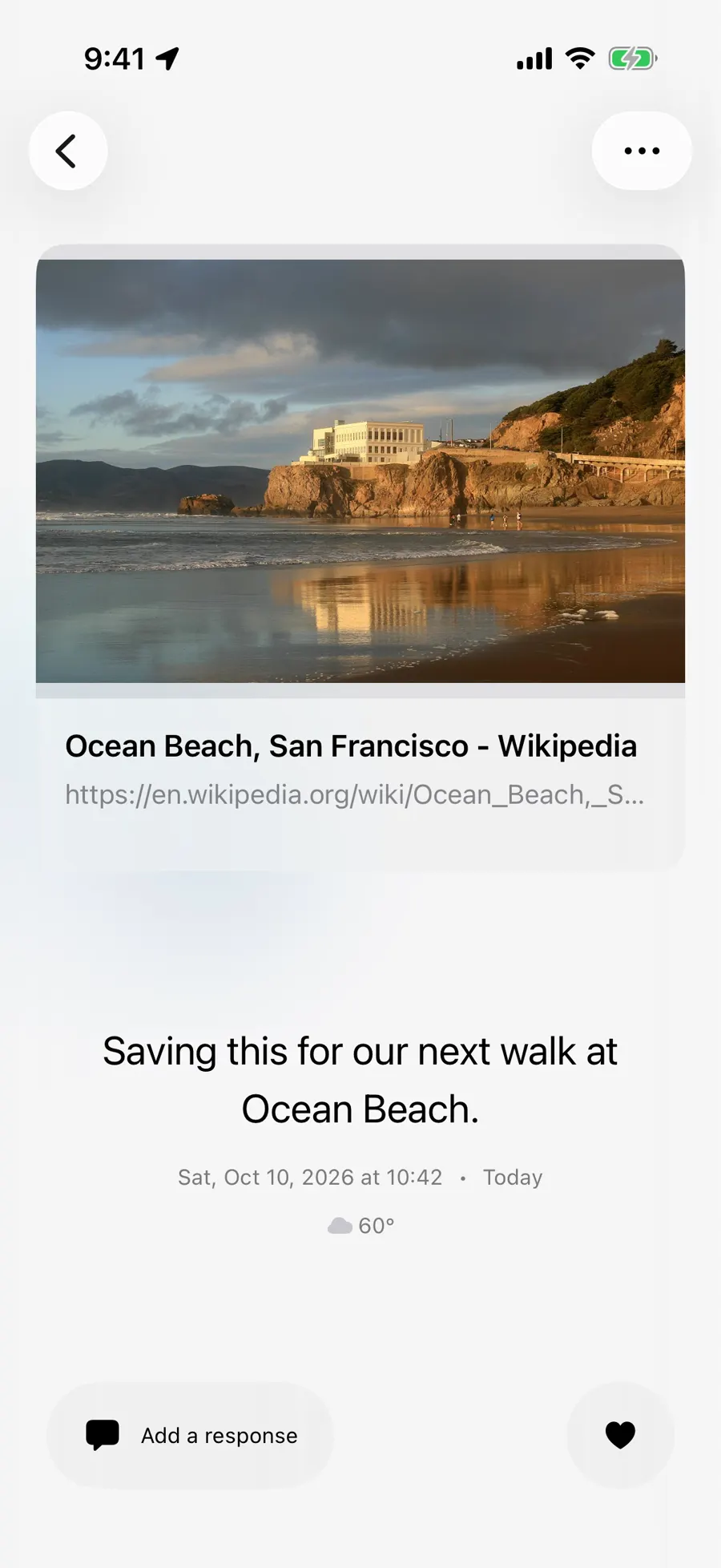
A preview depends on what the website makes available and may not look the same for every address. A page can change, disappear, or require an account later. Write down the point you wanted to remember, rather than trusting the preview to preserve a whole website. Add a tag if you might look for the plan by subject.
A document can belong to a day
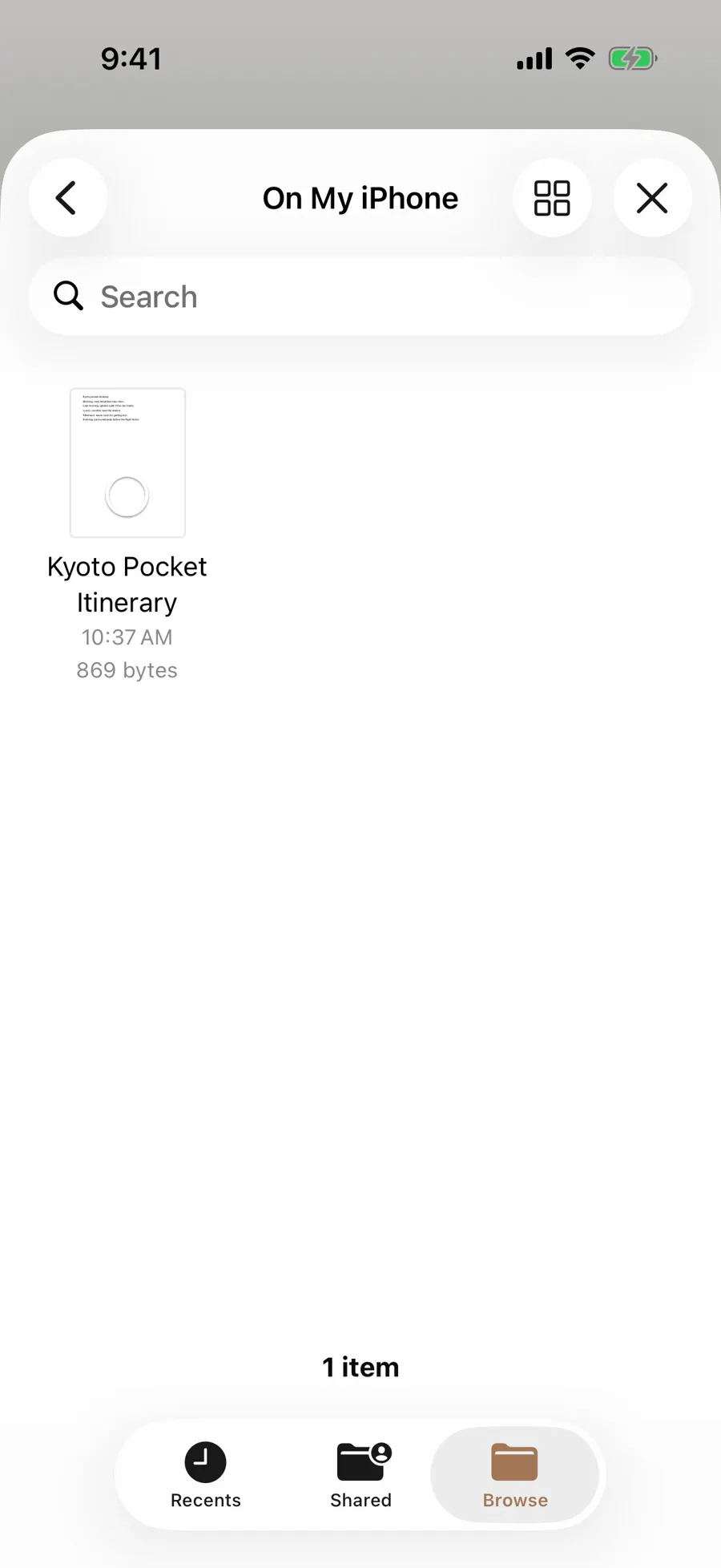
Tap the paperclip to choose a PDF or other document from Files. It joins the items attached to this entry; after saving, a file card appears in the reading view and can be opened for a preview. The demo keeps a Kyoto pocket itinerary beside a note about preparing for the trip. Remembering the trip day may be easier than remembering a folder name.
- 1
- 2
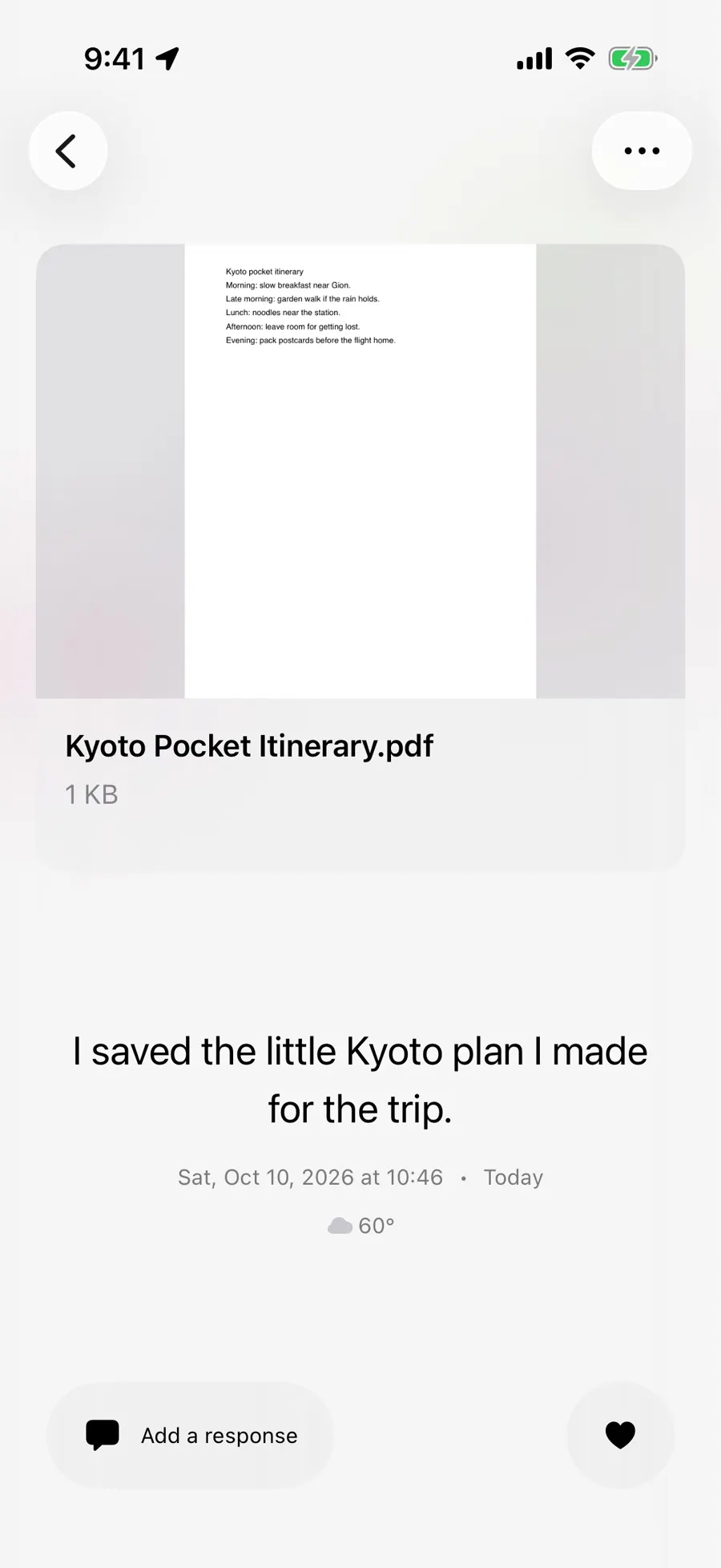
Later, Review’s All categories has separate places for Links and Files. Start there when you remember “the Kyoto plan” but have forgotten whether you saved it before or after the trip. Open a card to return to the original entry, where your note explains why it mattered. If you remember the day instead, use the calendar. These paths lead to the same saved material rather than making a second copy of the document.
Previewing depends on the device’s support for that file type. A link preview, attached document, and Markdown journal export serve different purposes. Exporting the journal does not promise an offline copy of every outside page you linked.
Bring a moment in from elsewhere
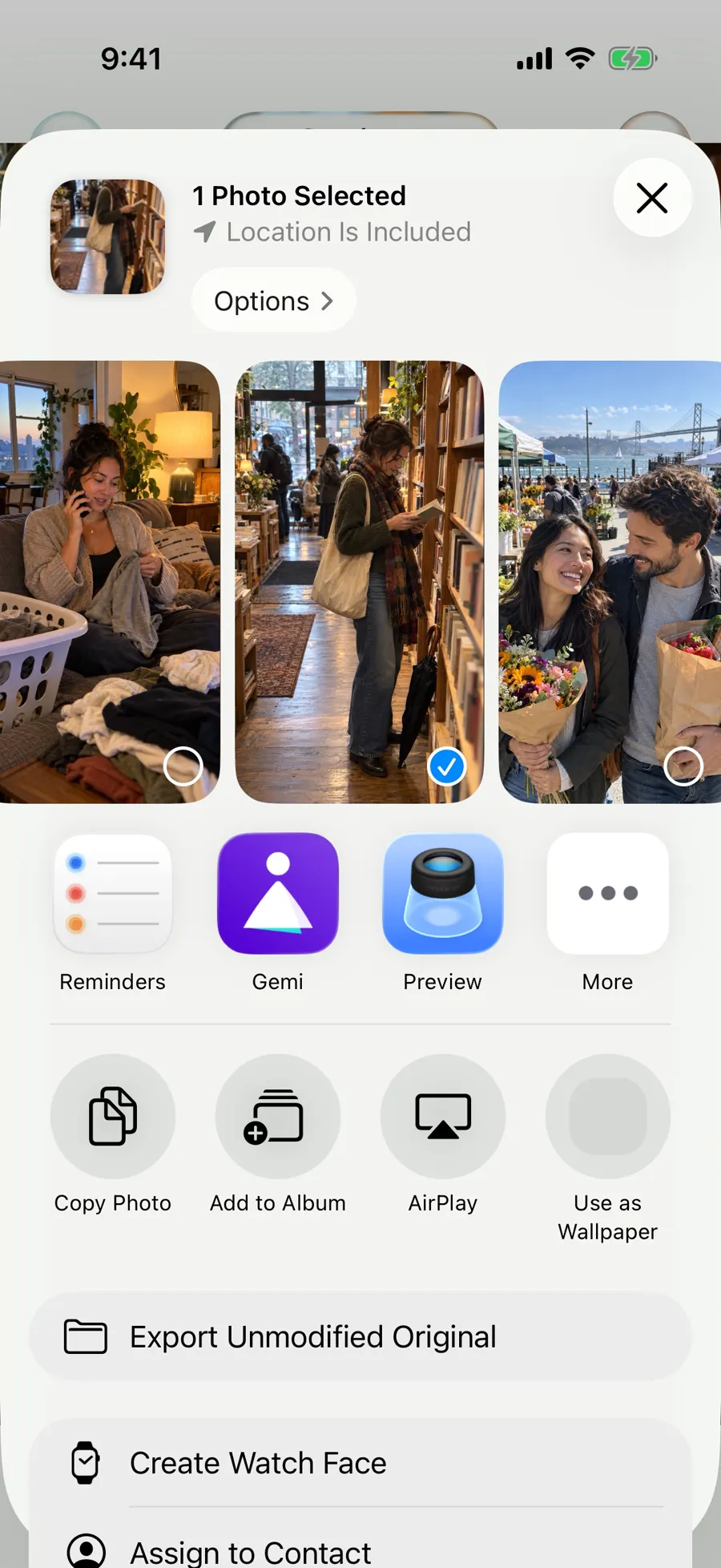
The share route is helpful when the interesting thing arrives before you open the journal. From Photos, Safari, or a supported app, tap Share and choose Gemi. Images, text, or links enter a draft; check what arrived, remove anything you did not mean to keep, add why it matters, and save. In the example, a photograph appears among the items added to the new entry. The handoff does not decide the final wording or date for you.
- 1
- 2
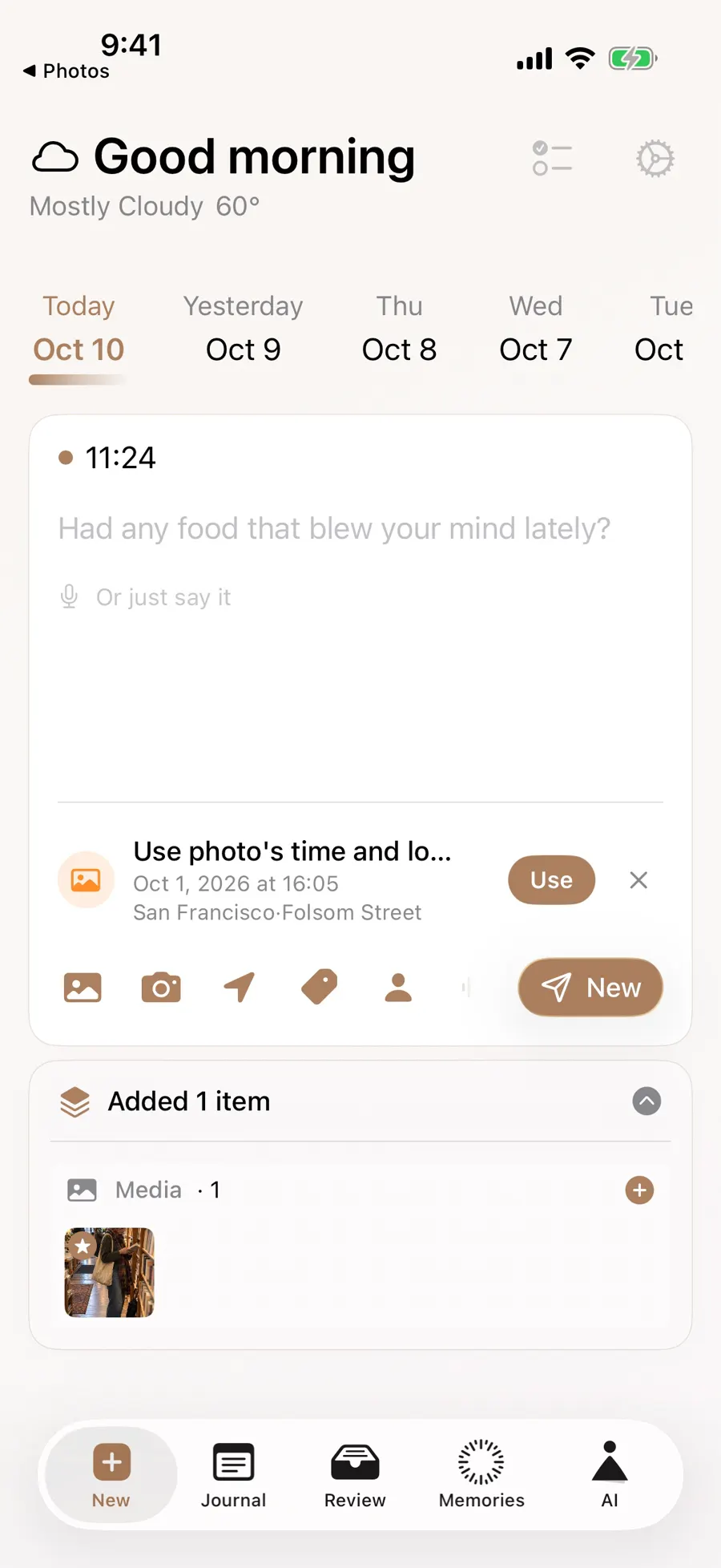
Whether Gemi appears in the share sheet depends on the device and the source app. Treat the draft as the beginning of an entry, then check that you have saved it. If you want to browse it by date later, the calendar will take you back.
Updated 2026-10-11 · Screenshots use demo data