
Maya took a photo of you both by Ocean Beach just before the light faded. The picture remembers the sea, but not what you said on the walk back. In Gemi, add that image to the day’s entry and write the missing line. Both stay with the entry when you return to that day later.
Start with what the picture misses
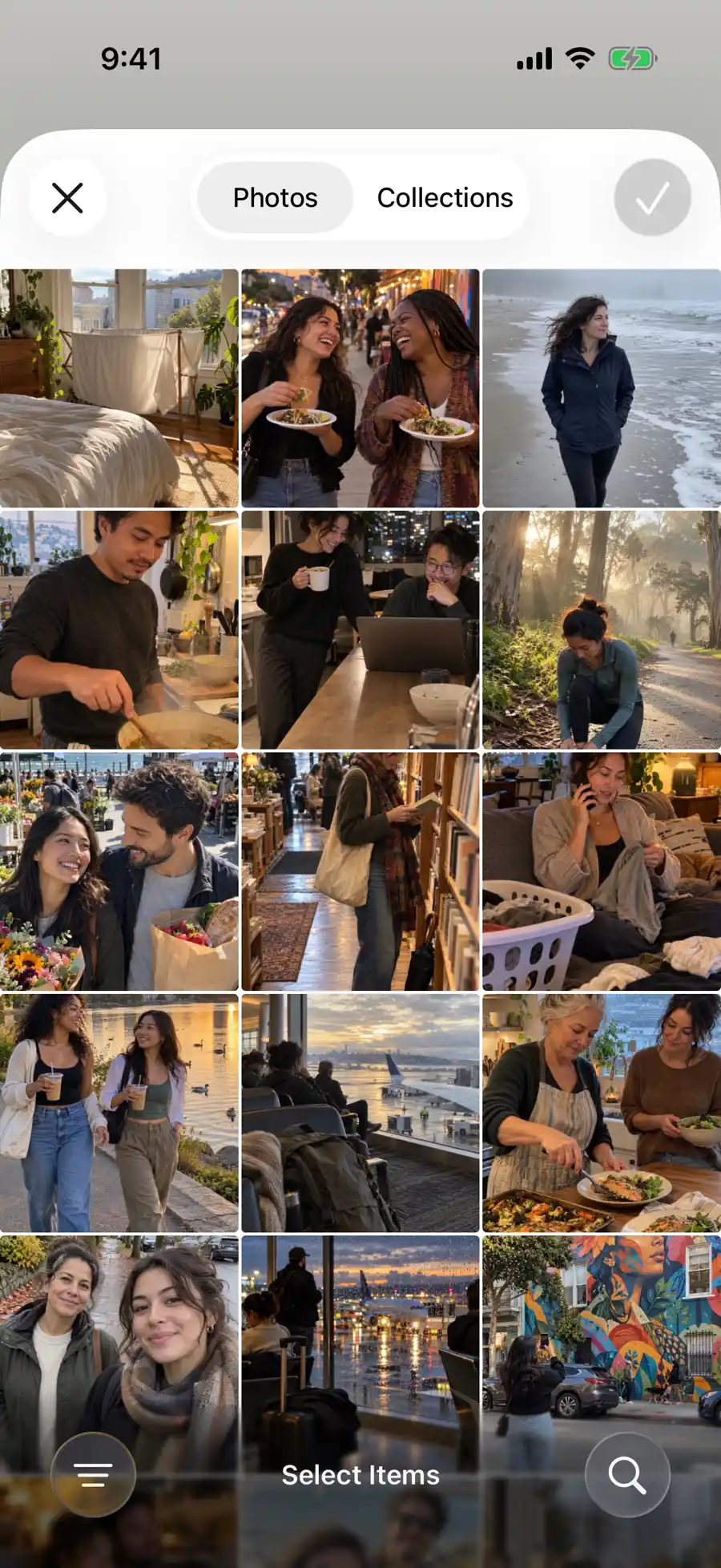
Tap the photo button in the writing bar to choose photos, videos, or Live Photos from your library. The camera button lets you take one then and there. Your choices appear with the other items added to this entry before you save it. Begin with the sentence or the image; either can help you remember the other.
- 1
- 2
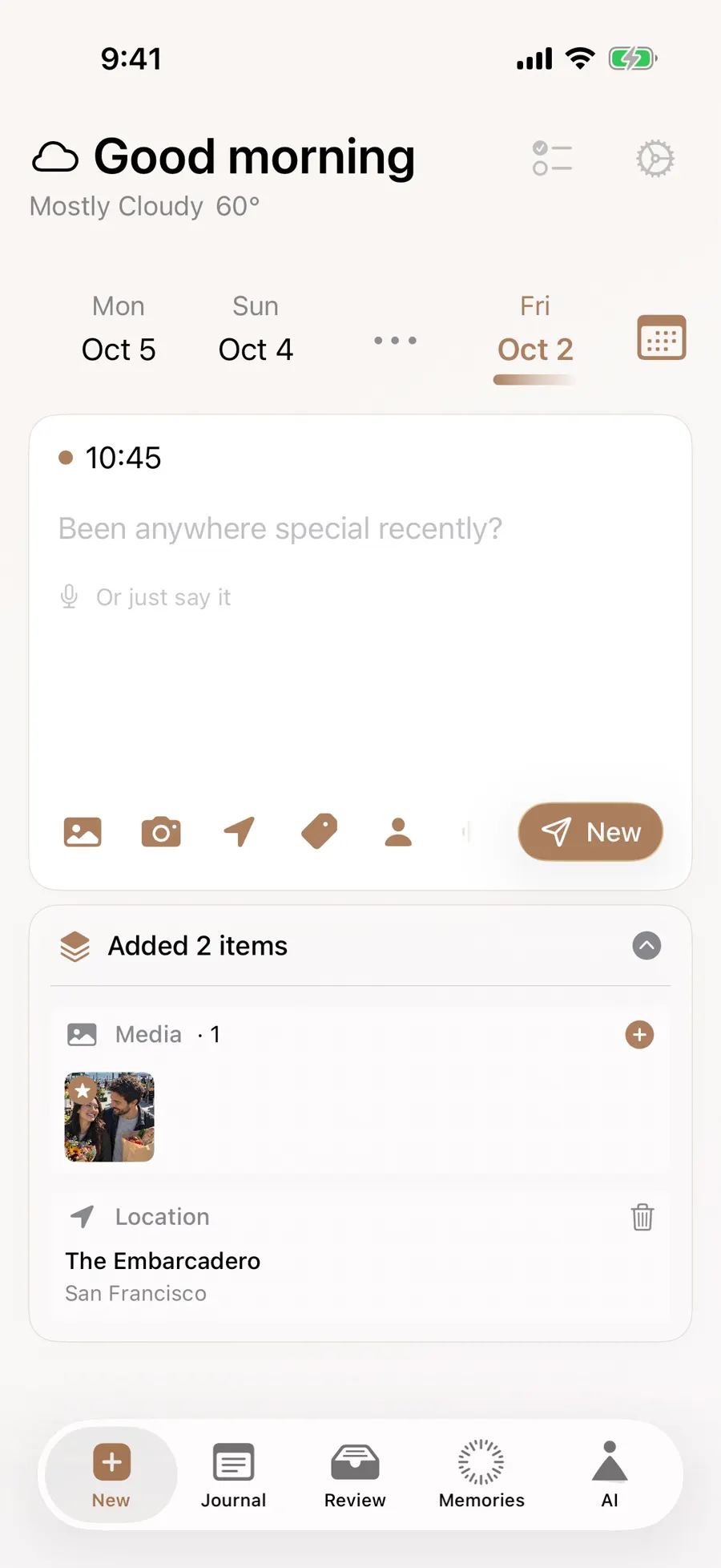
The writing page also offers photos taken on the selected day. Tap one to add it or press and hold for a closer look. If you are writing about last Saturday, move the date strip back first; the suggestions change with the day. Photo access needs permission. If nothing is suggested, you can still look through the library picker yourself.
Put an image where the story turns
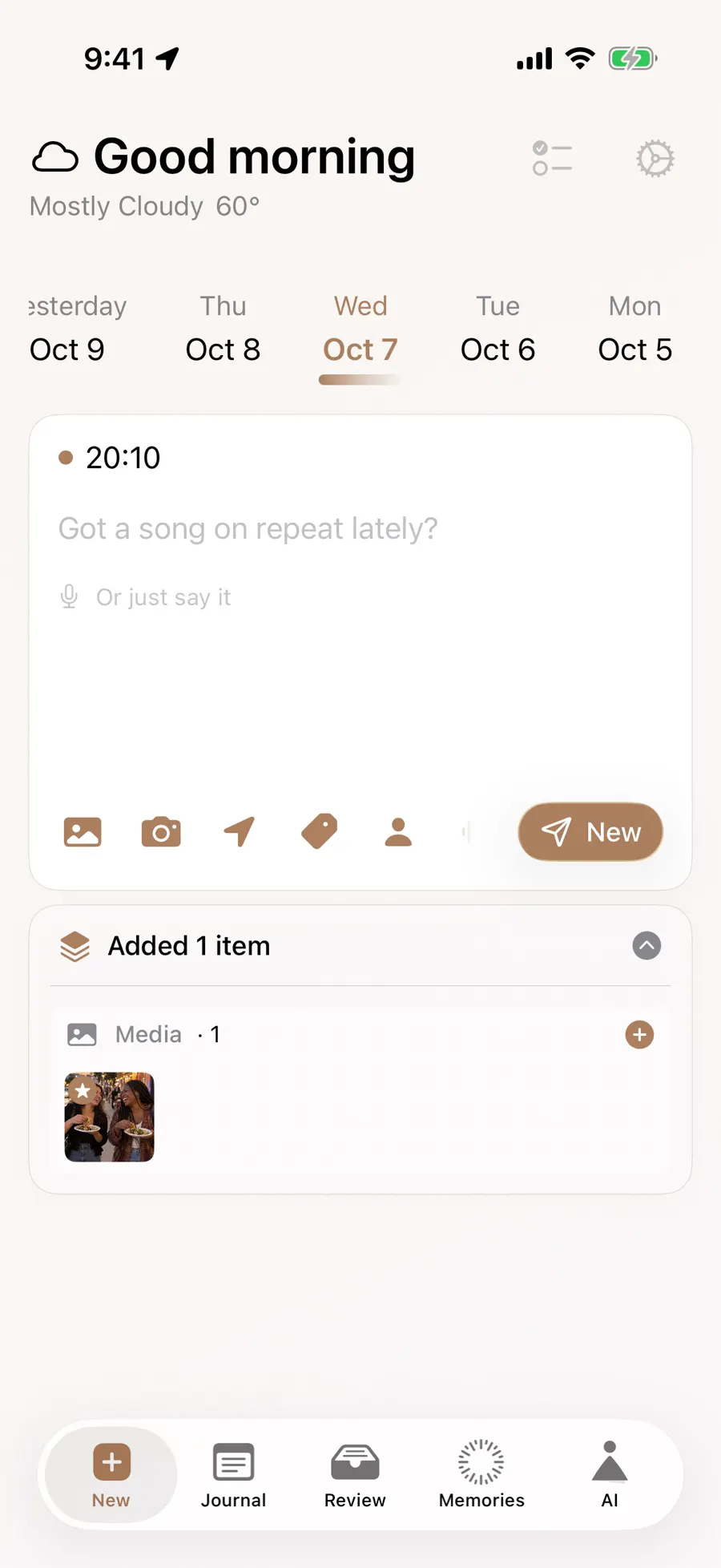
There is no need to choose one permanent photo style for the whole journal. A short entry can place two images among its words, while a day with several snapshots can keep them together as attachments. Later, the album is the visual route and the date is the chronological route to the same saved material. This flexibility matters most on travel days, when you remember a picture before the morning’s exact date.
A long walk may have more than one scene. Expand the editor with the button at its upper right, put the cursor between two paragraphs, and use the photo button below. The image lands in the writing at that point. You might write about a quiet morning at the beach, place one image, then continue with the crowded café on the way home.
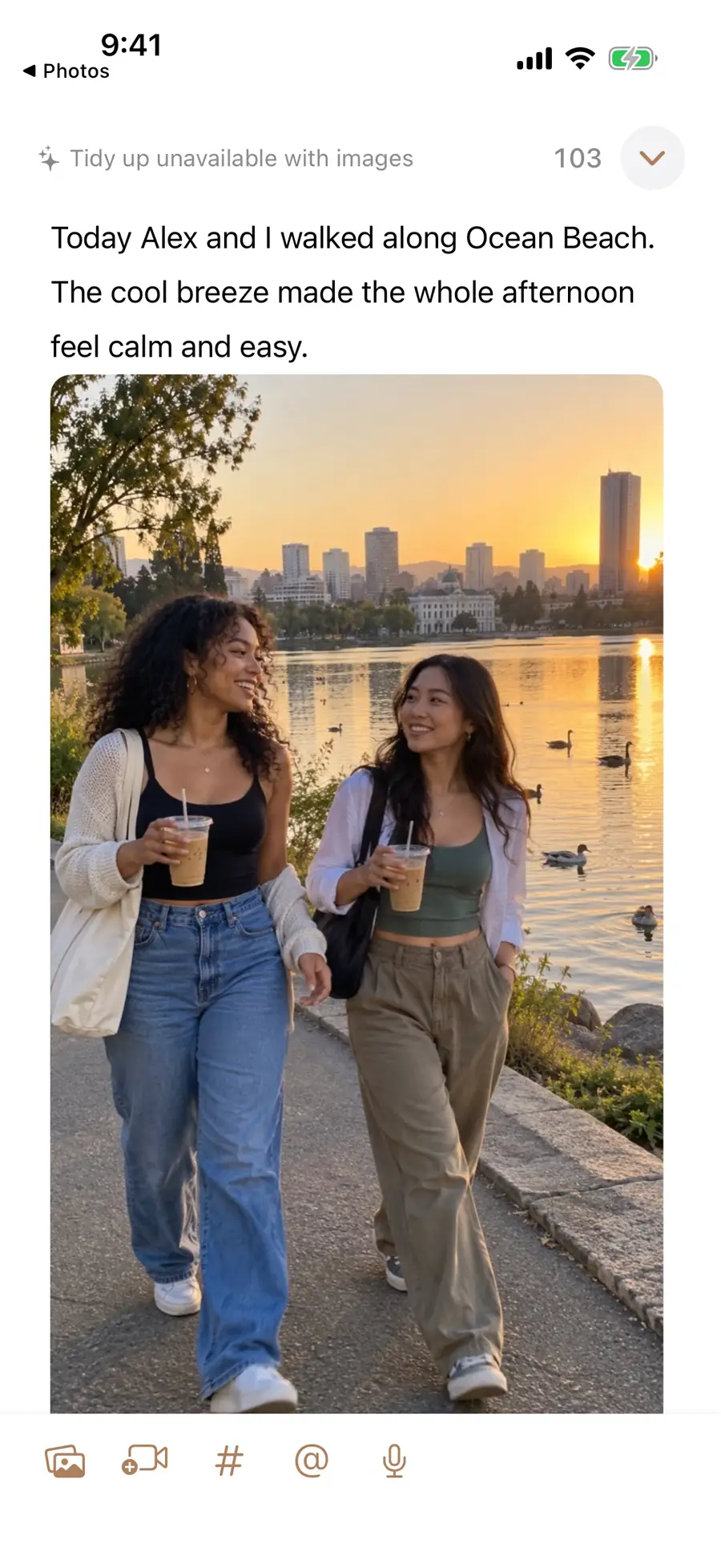
The English demo gives two useful examples of why placement matters. A photograph of friends beside Ocean Beach sits between paragraphs in one entry, making the next line feel like the walk continued. A different day’s airport window appears in the album grid with its date. You can use the first treatment when order is part of the story, and the second when a handful of images should be easy to browse together.
An attached photo keeps a small set from the day together. An image inside the writing belongs to a particular sentence. Both can live in the same journal; you do not have to create a new entry for every picture. Links and documents have separate places, explained under saving attachments.
The album made from your entries
Open the album from the top of the Journal page to browse photos and videos you have placed in entries. Switch between large images and a grid, then follow one back to its day. This album gathers images you chose for your journal; it does not silently copy your entire phone library.
Selecting photos from the day can also save a search when you write late. The suggestion strip follows the date you chose in the editor; the album follows what you actually saved. That is why a photograph can appear as a suggestion without yet appearing in your journal album. Add it to an entry and save if you want it to join that collection. You remain in control of which pictures become part of the journal.
If the date comes to mind first, try the calendar. For ideas about choosing a few photographs and writing around them, read starting a photo journal.
Updated 2026-10-11 · Screenshots use demo data